Accessing the Notebook Server
To access the notebook exercises go to the URL
https://notebooks.dmaitre.phyip3.dur.ac.uk/THE_COURSE_NAME>
where you should replace THE_COURSE_NAME with code name for the course, it might be something like fop1-2021 or electronics-2021. You should be greeted
by a login screen similar to the picture below.
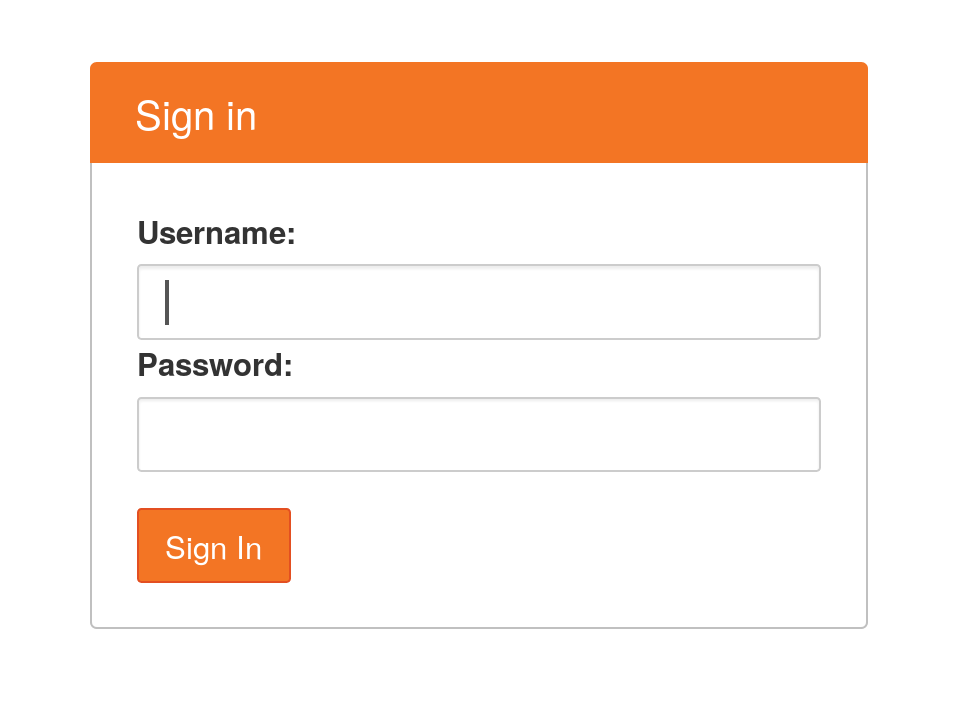
Log in with your CIS username and password. Once logged in you should see a list of your files (empty the first time you log in).
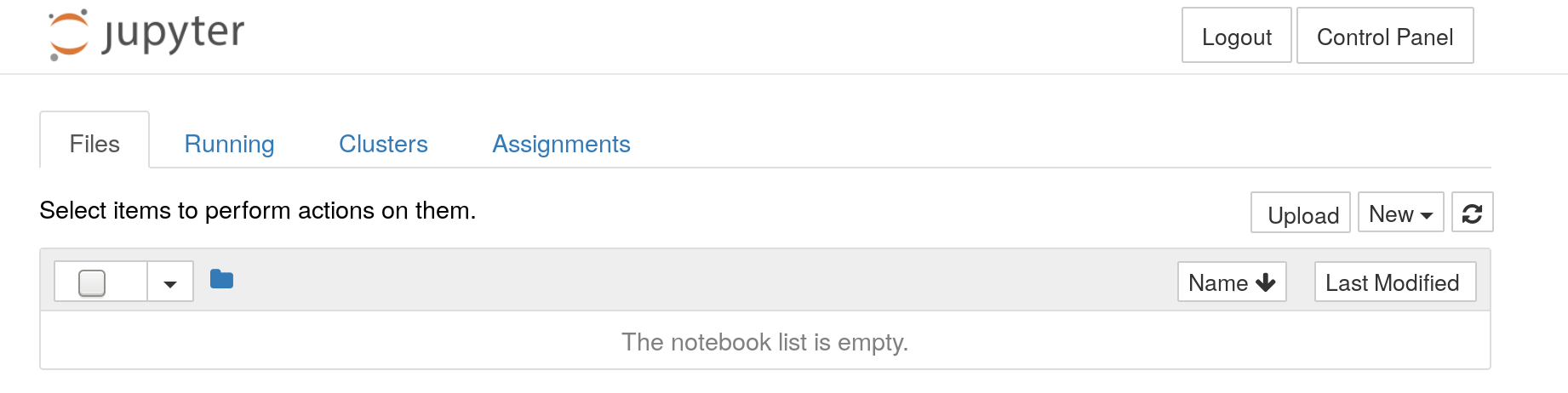
To access the python exercises, go to the “assignments” tab. You should get a list of assignments that are ready for you to download.
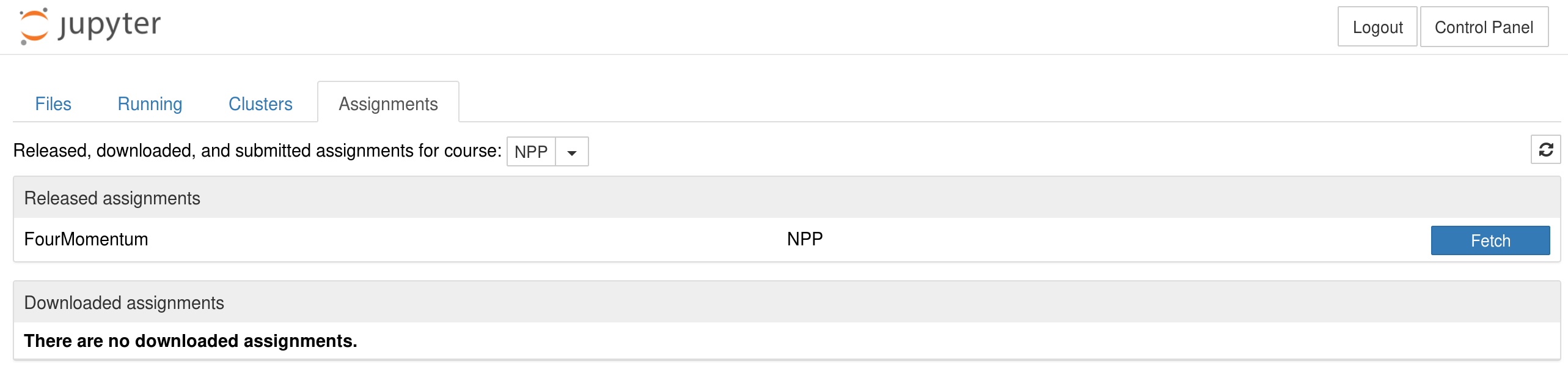
To download an assignment, click on the “fetch” button, the assignment will move to the “Downloaded assignments” section. It will also be in a folder in your “files” view after you log in.
Each assignment can contain one or more notebooks, you can see the notebooks for each assignment by clicking on the assignment name in the “Downoaded assignments” section, or navigating to the directory named after the assignment.
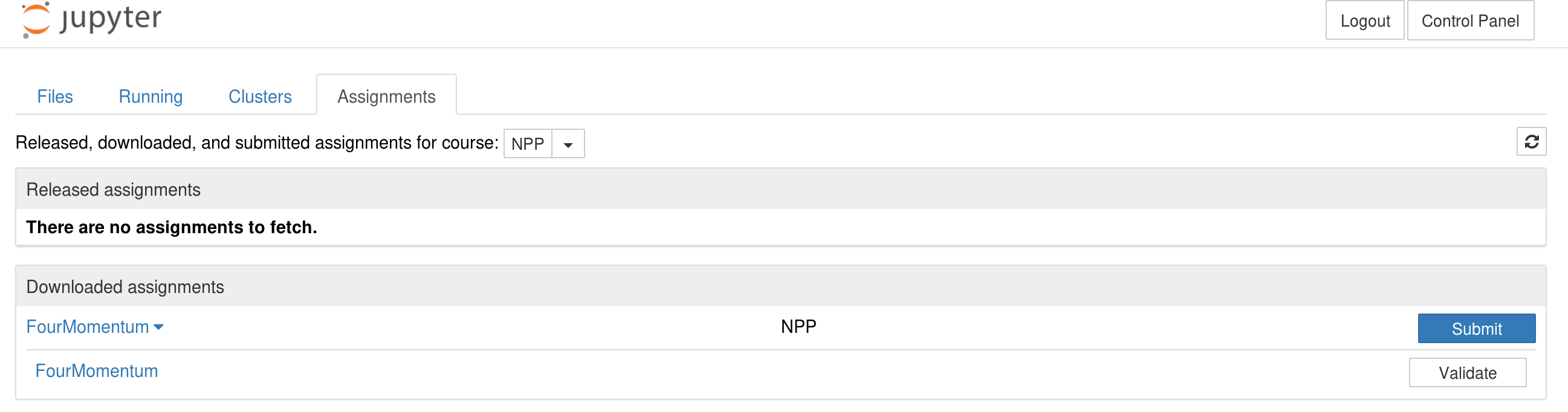
By clicking on a notebook in the list this notebook will open for you to edit.
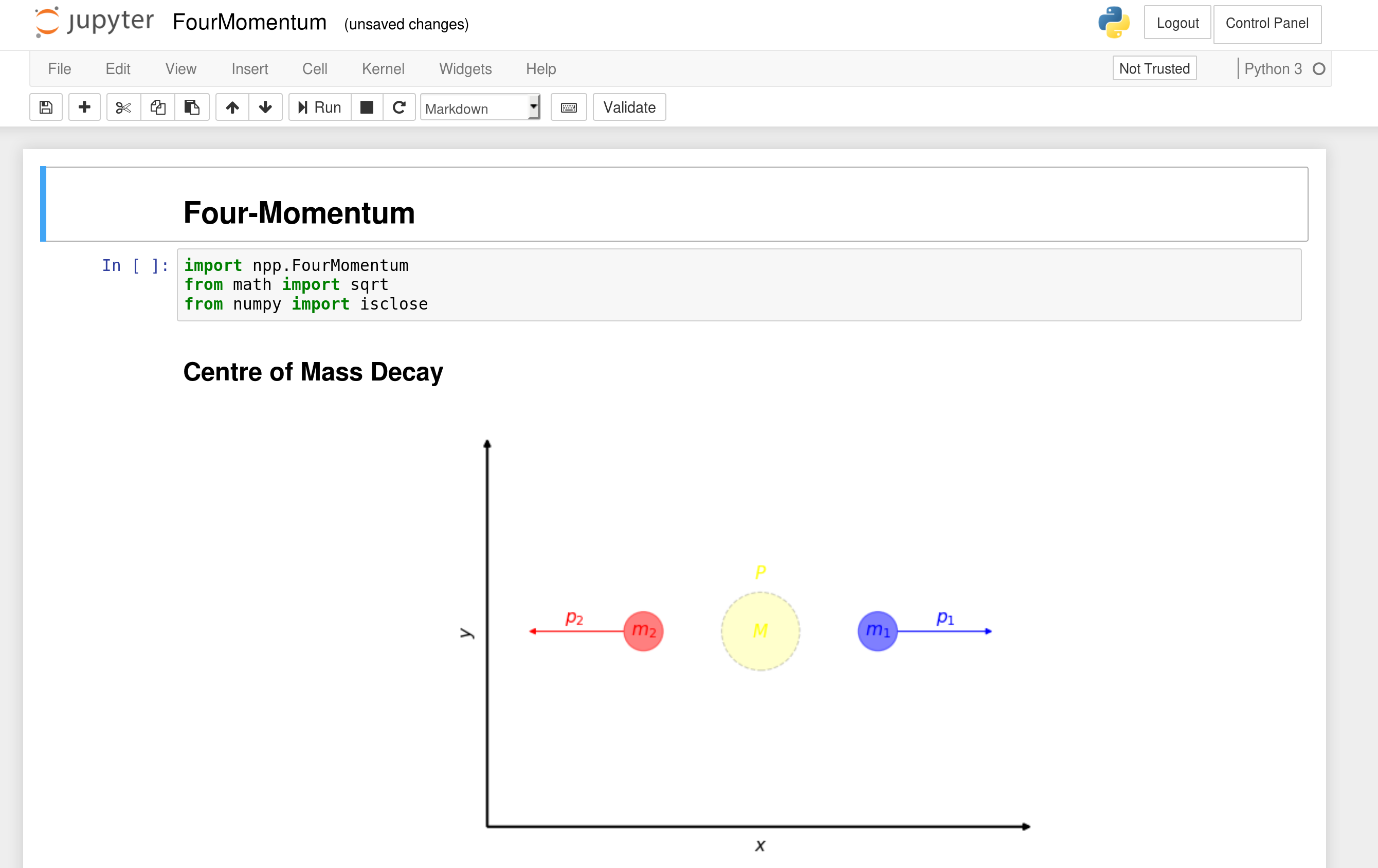
Some notebooks come with exercises and tests to check that your implementation is correct. The “validate” button in the assignment section will run the notebook and check that all tests pass. Once you are satisfied with your notebook you can submit it to be graded.